Discovery failed
DISCOVERY FAILED offers RETRY. If scanning repeatedly fails, record the message and head-unit identity, then follow the diagnostic procedure.
Every step of the automatic RC1 first-run wizard, from discovery to your default Home app.
The wizard starts when discovery or first-run setup is incomplete. On a clean installation it guides you from the initial scan to the Home selection.
The available illustration is the first wizard screen. The steps below describe the RC1 sequence; they are not invented head-unit screenshots.
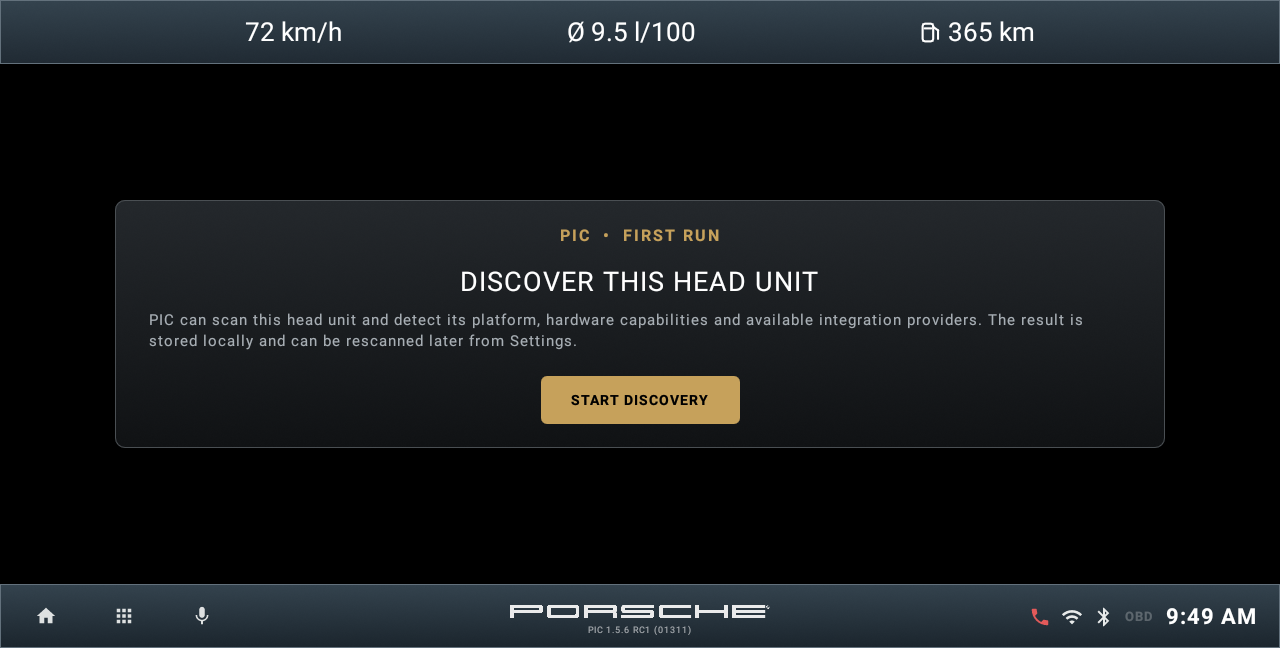
DISCOVER THIS HEAD UNIT opens automatically on a fresh installation. Tap START DISCOVERY. Incomplete setup can reopen or resume the wizard.
Wait at SCANNING HEAD UNIT while PIC detects the platform, capabilities and providers. There are no configuration choices on this step.
Review Platform, Confidence, SoC, Android/API, GPS, Bluetooth and provider counts. Tap CONFIGURE YOUR PORSCHE. Detection is not a hardware certification.
Choose the matching vehicle profile, check tank capacity, then choose KM/KM/H or MI/MPH and L/100 KM, KM/L, MPG US or MPG UK. Tap CONTINUE. This configures calculation assumptions, not the ECU.
Use the Notification Access switch, then OPEN ANDROID SETTINGS to authorize PIC. Return to see the updated state. CONTINUE or NOT NOW proceeds; deferring can limit integrated media information.
Use the switch and Android settings to select PIC as the Home app. Return to PIC, then CONTINUE. NOT NOW also finishes when PIC is not the default launcher. HU startup settings may be separate.
DISCOVERY FAILED offers RETRY. If scanning repeatedly fails, record the message and head-unit identity, then follow the diagnostic procedure.
Location, music/storage, contacts and call history are requested by the relevant functions. The wizard does not pair your phone or connect an OBD adapter.
Open Settings > Home style for CLASSIC or MODERN. Swipe to see the second Home page.
Open Settings > Application integrations. Use the native apps to verify the underlying hardware functions where needed.